Outlook OAuth Sending: Graph or SMTP, Set Up Properly

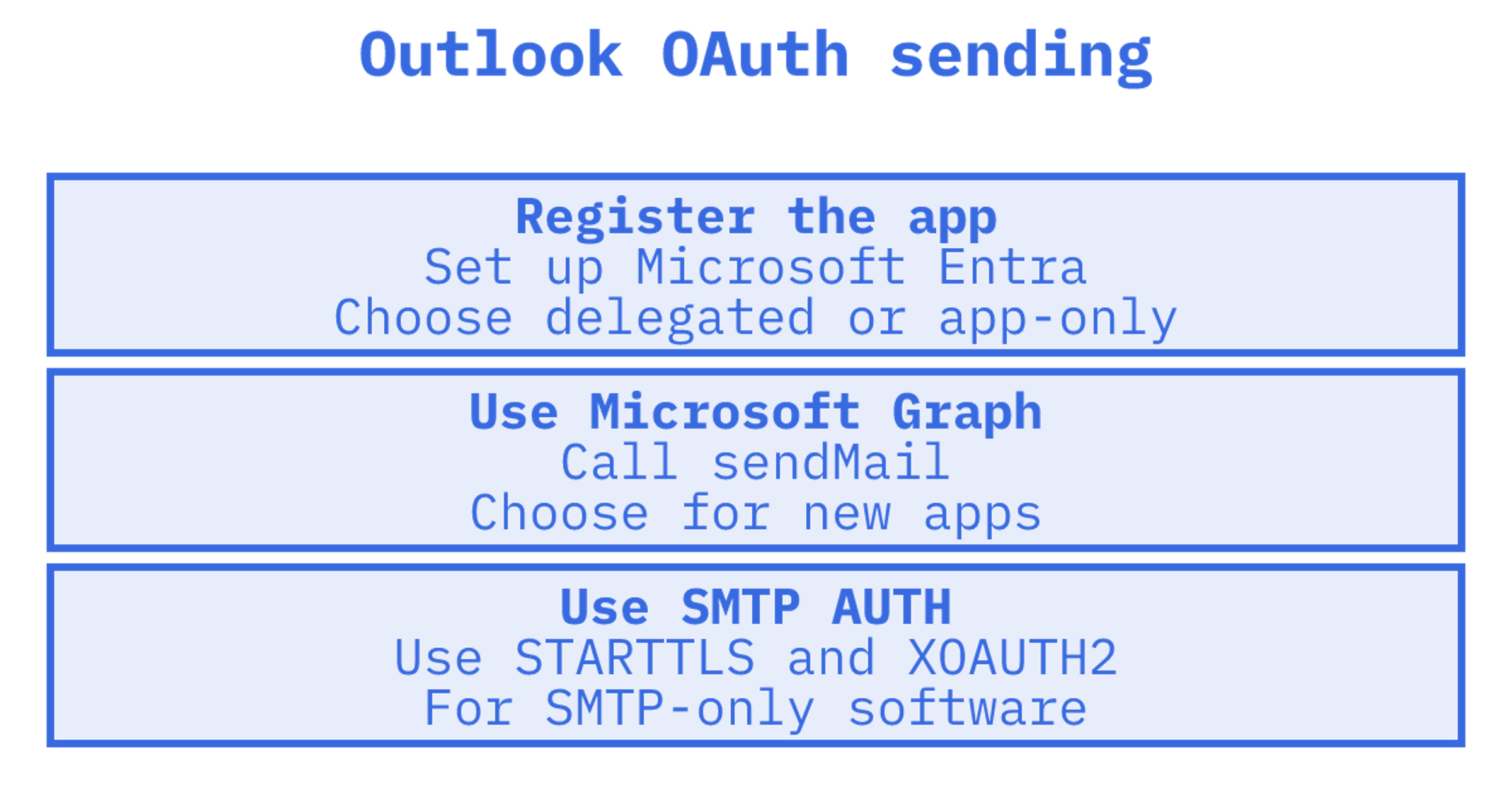
To send email from an Outlook or Microsoft 365 mailbox with OAuth, register an app in Microsoft Entra, get an access token, then either call Microsoft Graph sendMail (the better choice for new code) or authenticate SMTP with the XOAUTH2 mechanism (for software that can only speak SMTP). Both work. The hard part is rarely the first message. It is keeping tokens alive, staying inside Microsoft's limits and handling failures once many mailboxes or agents depend on it. This guide covers the setup, the traps and the point where routing sends through one API makes more sense than hand-built plumbing.
TL;DR
- Use Microsoft Graph
sendMailfor new applications. Use SMTP AUTH with OAuth 2.0 only when the application or appliance cannot call Graph.
- Delegated tokens belong to a signed-in user and rely on refresh tokens. App-only tokens need admin consent and a mailbox-scoped grant.
- Client SMTP submission is capped at 10,000 recipients a day and 30 messages a minute, and it is for transactional mail, not bulk.
- Most production failures are permission mix-ups (delegated vs application), missing mailbox licences or tenant settings, not code bugs.
- The Qubrics Sending API routes outbound mail through connected Outlook, Gmail and custom SMTP accounts. Custom SMTP accounts support configurable quotas.
Table of Contents
1. Choose the path: Graph, SMTP AUTH or something else
Microsoft documents four ways to send from an application on Microsoft 365: client SMTP submission, SMTP relay through a connector, Direct Send and High Volume Email. Only client SMTP submission and HVE are relevant when you want OAuth. Relay needs a certificate or a static unshared IP address and port 25, and Direct Send is unauthenticated.
For OAuth, the real choice is between two routes:
Microsoft Graph sendMail | SMTP AUTH with OAuth 2.0 (XOAUTH2) | |
|---|---|---|
| Endpoint | graph.microsoft.com/v1.0/users/{id}/sendMail | smtp.office365.com, port 587, STARTTLS |
| Best for | New applications | Legacy apps and appliances that only speak SMTP |
| Sent Items | Saved by default | Depends on client behaviour |
| Errors | Structured HTTP responses | SMTP reply codes |
| Scoping | RBAC for Applications in Exchange Online | Service principal plus mailbox permissions |
Dartmouth's IT services team, in its FAQ for application teams, recommends Graph for new builds because it saves to Sent Items, supports attachments, HTML and shared mailboxes, returns structured errors and can be scoped with RBAC. It keeps SMTP AUTH with OAuth2 for cases where Graph is not an option.
One older route is gone. Microsoft deprecated the Outlook REST APIs and told developers to move to Graph, with the endpoints fully decommissioned in March 2024. If you find a tutorial using outlook.office.com/api, treat it as out of date.
2. Register the application in Microsoft Entra
Every OAuth route starts the same way. Per Microsoft Learn, you register your application with Microsoft Entra and obtain tokens from the Microsoft identity platform using one of three flows:
- Authorization code flow, for a user who signs in and consents.
- Device authorization grant, for devices or terminals without a browser.
- Client credentials grant, for unattended services with no signed-in user.
Pick the flow by who the mail is sent as. If each message goes out as a human who has signed in, use delegated access. If a backend job sends as a shared or service mailbox, use client credentials.
The scope strings matter, and they differ by route:
- Graph, delegated:
Mail.Send, plusMail.Send.Sharedfor shared mailboxes.
- SMTP, delegated:
https://outlook.office.com/SMTP.Send, plusoffline_accessto receive refresh tokens.
- SMTP, app-only: the Exchange Online application permission
SMTP.SendAsApp, with the scopehttps://outlook.office365.com/.default.
The Graph and Outlook scope prefixes are not interchangeable either: Graph scopes begin with https://graph.microsoft.com/, while Outlook endpoint scopes begin with https://outlook.office.com/, as the Graph and Outlook comparison explains. Mixing them is a common source of token requests that succeed and API calls that fail.
3. Delegated or app-only: pick the token that fits the design
The two token types suit different designs, and neither is simply better. A delegated token belongs to a signed-in user and is kept alive by a refresh token, which means the application has to run periodically and the user account has to stay valid. App-only access has no such dependency, and under RBAC the application's reach can be limited to specific mailboxes (Dartmouth FAQ).
The practical consequences:
- Delegated: a user leaves, changes password or has a session revoked, and sending stops. Your code needs a path for re-consent.
- App-only: consent comes from a tenant admin once, but you must also decide exactly which mailboxes the app may use. The Graph
Mail.Sendapplication permission does not by itself let an app send from every Exchange mailbox in the HVE context. Microsoft says it covers HVE account type users unless the app is explicitly authorised through Application Access Policies or RBAC for Applications.
For app-only SMTP, Microsoft Learn's sequence is: add the SMTP.SendAsApp permission, obtain tenant admin consent, register the app's service principal in Exchange, then grant it access to the permitted mailboxes. That means FullAccess on the mailbox, plus SendAs if you need to send as another address (Microsoft Learn).
4. Send the message
Graph
POST to /me/sendMail or /users/{id}/sendMail with an Authorization: Bearer header. The body can be JSON (Content-Type: application/json) or base64 MIME (text/plain). The least-privileged permission is Mail.Send for both delegated and application access. The message is saved to Sent Items by default, and a 202 Accepted response means only that Microsoft accepted the request: delivery is still subject to Exchange Online limits and throttling (sendMail reference).
That last point catches teams out. A 202 is not a delivery receipt. If your product tells a customer "sent" on a 202, you will eventually be wrong.
SMTP with XOAUTH2
Connect to smtp.office365.com on port 587 with STARTTLS. After the greeting, authenticate with AUTH XOAUTH2 and a base64 string built, per Microsoft, from the user name and bearer token in the SASL XOAUTH2 format. Client SMTP submission requires TLS 1.2 or 1.3 and a licensed Microsoft 365 mailbox (Microsoft Learn). OAuth2 for SMTP is available to both Microsoft 365 and Outlook.com users, according to Microsoft's HVE OAuth page.
Microsoft also states that Basic authentication for client SMTP submission is not compatible with Security defaults in Microsoft Entra ID, and recommends Modern authentication (OAuth). In other words, OAuth is the supported direction, not an optional hardening step.
5. Why Outlook OAuth sends fail
Most failures come from a short list of causes.
Wrong permission type. Unattended services using client credentials need Mail.Send as an application permission with admin consent, and the scope is https://graph.microsoft.com/.default. Granting the delegated version instead is a frequent reason for 403 responses.
No mailbox behind the identity. A 401 on POST /me/sendMail can mean the token lacks Mail.Send, or that the user has no Exchange Online mailbox provisioned through a licence. A valid token for an account without a mailbox still fails. Check both before debugging code.
SMTP AUTH disabled. SMTP AUTH can be switched off at tenant or mailbox level, and Security defaults can block it. The symptom is an authentication error from the SMTP server even though the token is valid. For tenants you control, an admin has to enable it for the sending mailbox. For tenants your customers control, you need to tell them exactly what to switch on, which is a support burden.
Consumer accounts behave differently. Reports on Microsoft Q&A describe newly created personal Outlook.com accounts failing SMTP AUTH even with a correct SMTP.Send token, and no admin surface for consumer accounts to change the setting. If your product must send from personal Outlook.com addresses, test that path before you promise it.
Hitting limits. Client SMTP submission is throttled to 10,000 recipients a day and 30 messages a minute, and Microsoft states the service cannot be used for spam or bulk mail (Microsoft Learn). Dartmouth's guidance is that Graph and SMTP suit transactional mail, meaning a message triggered by an action and sent to the person who took it. They do not suit newsletters or list sends. Our guide to Outlook sending limits and fixes goes deeper on the caps.
If you want a second walkthrough of the SMTP route specifically, we cover Outlook OAuth for SMTP, with scopes and common errors.
6. A diagnosis routine that saves hours
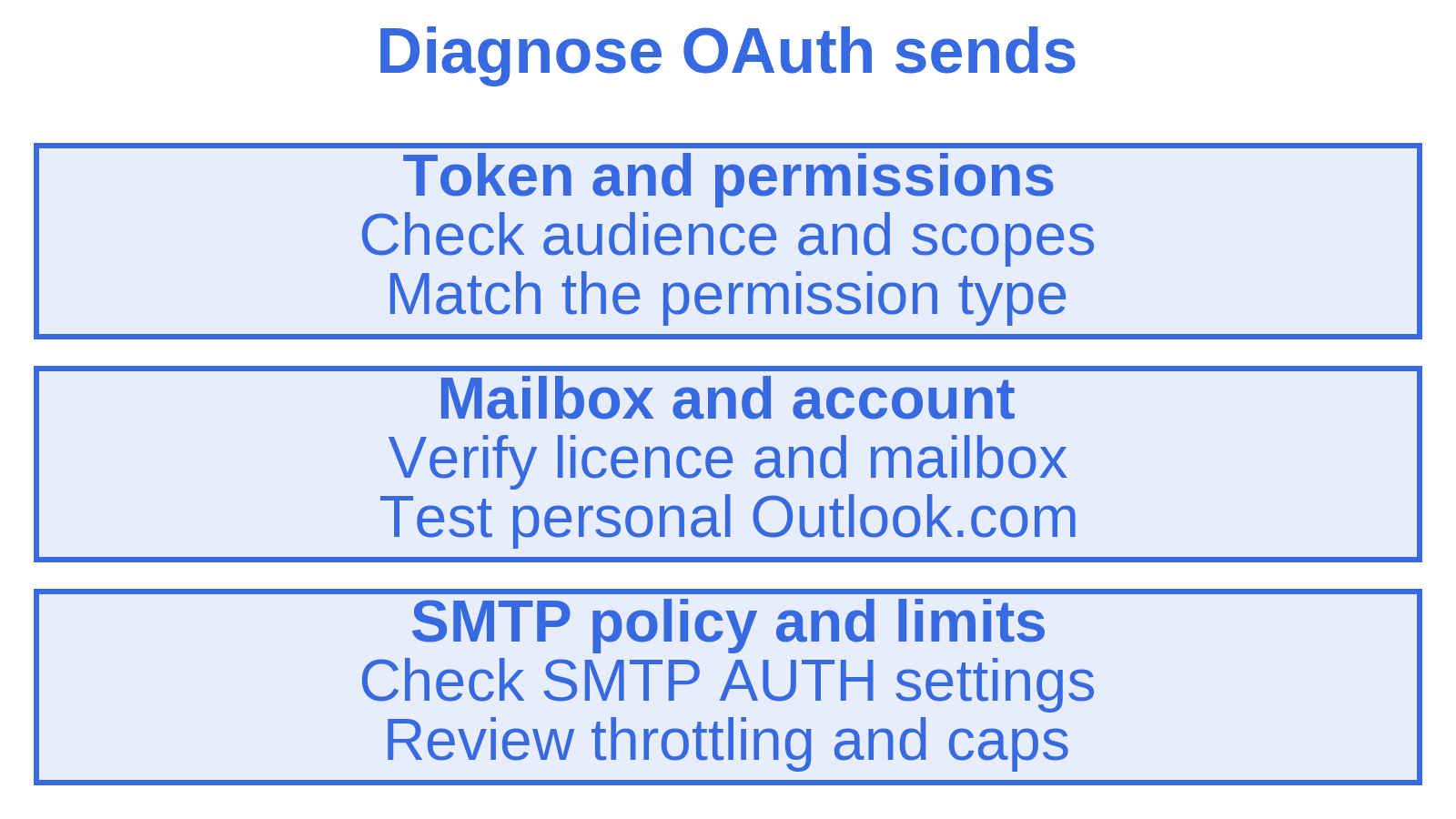
Work through this in order when a send fails:
- Decode the token and confirm the audience and scopes match the route. Graph tokens should carry Graph permissions. SMTP tokens should carry
SMTP.SendorSMTP.SendAsApp.
- Confirm delegated vs application. If the job has no user, the permission must be an application permission with admin consent.
- Confirm the mailbox exists and is licensed. No mailbox, no send.
- For SMTP, check tenant and mailbox SMTP AUTH settings and whether Security defaults are on.
- For app-only SMTP, check the Exchange service principal and the mailbox permissions you granted.
- Read the response class. A 4xx from Graph is usually a permission or request problem. A 429 or a throttling message means slow down, not retry harder.
- Log the message ID you get back, so a customer's "it never arrived" can be traced.
The seventh step is the one most teams skip, and it is the one that matters when a customer disputes a delivery.
7. When one Outlook mailbox becomes a fleet
Everything above is manageable for one app and one mailbox. The pain starts when the use case multiplies:
- An AI agent product gives every customer or workspace its own mailbox.
- An outbound team sends across many domains and wants Outlook, Gmail and SMTP accounts to share the load.
- A support agent has to send replies and read inbound replies in the same thread.
- A provider throttles or suspends one account and sending has to continue elsewhere.
Now you are maintaining token refresh per account, consent flows per tenant, per-provider limit tracking, a parser for inbound mail, a webhook relay and separate billing. Each piece works. Together they become a second product you did not intend to build. Our comparison of why Gmail and SendGrid fall short for AI agents describes the same stitched-together pattern, and the SMTP vs email API checks are worth running before you commit to either side.
The same logic applies to the other common provider. If you also send from Google accounts, the failure modes in Gmail OAuth sending are close cousins of the Outlook ones.
8. What to compare in an Outlook sending API
If you are evaluating an API to sit in front of Outlook for an agent or multi-tenant product, these are the criteria worth scoring:
| Criterion | Why it matters |
|---|---|
| Inbound as well as outbound | Agents need to read replies, not only send. |
| Per-mailbox isolation | One tenant's quota or failure must not touch another's. |
| Provider routing and failover | A throttled Outlook account should not stop sending. |
| Delivery logs and webhooks | You need to show what happened to each message. |
| Pricing model | Per-inbox or per-connected-account fees compound across tenants. |
| Domain setup | SPF, DKIM and DMARC across many domains is real work. |
Qubrics lets you provision mailboxes for agents, customers or tenants on the included @myagent.mx domain or on a custom domain verified for receiving, within your team's mailbox limit. You can connect Gmail OAuth, Outlook and custom SMTP accounts for sending, or use managed Amazon SES. Set outbound quotas for custom SMTP accounts and weights across eligible providers. Read delivery logs in the Management API. Webhooks deliver mailbox events, and the Mailbox API offers a live event stream. Domain verification checks SPF, DKIM and DMARC.
9. What it costs
Qubrics combines a team plan with usage charges. See the pricing page for current rates.
| Item | Price |
|---|---|
| Free plan | US$0 per month per team |
| Pro plan | US$7 per month per team |
| Enterprise | Custom pricing |
| Connected outbound | US$0.0005 per provider-accepted recipient occurrence |
| Managed sending | US$0.00075 per provider-accepted recipient occurrence |
| Inbound | US$0.0005 per distinct mailbox delivery |
| Storage | US$0.02 per decimal GB-month |
Connected outbound sends through a provider you supply, such as an Outlook account. On Free and Pro, adding a mailbox carries no per-inbox plan fee.
Our view: stop treating each provider login as a product
We built Qubrics because the pattern kept repeating. A team gets one Outlook OAuth send working, and it feels finished. Then the second tenant arrives, then a Gmail account, then a need to read replies, and the integration quietly turns into an email platform with no owner.
Our view is that setting up a Microsoft connection should be a single step. Qubrics uses the Sending API for outbound mail, the Mailbox API for messages and threads, and the Management API for delivery logs. Connect Outlook, Gmail and custom SMTP accounts, or use managed Amazon SES. Custom SMTP accounts support outbound quotas.
A persistent mailbox keeps an agent's messages and threads. The Mailbox API can return cleaned message text with quoted history stripped, so the agent can read the new reply. Sending account weights apply when several configured providers are eligible. That is the design we think agent workloads need.
Start with one Outlook account, then scale without rework
Start on Free at US$0 per month per team, with charges for email and storage usage. Free supports one connected sending account, so you can connect an Outlook account and provision a mailbox within the team's mailbox limit. As you add sending accounts within your plan limits, delivery groups and weights can route across eligible providers. See the Qubrics sending API and inbound mailboxes, or compare options in our roundup of SMTP relays for developers.
Sources
Recommended
Frequently Asked Questions
Should I use Microsoft Graph or SMTP for Outlook OAuth sending?
Use Graph for new applications. It saves to Sent Items, handles attachments, HTML and shared mailboxes, returns structured errors and can be scoped with RBAC. Keep SMTP AUTH with OAuth2 for software or appliances that cannot call Graph.
Which scope do I need to send via SMTP with OAuth?
For delegated access, request https://outlook.office.com/SMTP.Send, and add offline_access if you want refresh tokens. For app-only access, use the SMTP.SendAsApp application permission with the https://outlook.office365.com/.default scope. App-only also needs admin consent and an Exchange service principal with access to the mailbox.
Why do I get a 401 from sendMail with a valid token?
The token may lack Mail.Send, or the account may have no Exchange Online mailbox provisioned through a licence. Check the permission and the mailbox before changing code.
What are the sending limits for Outlook SMTP OAuth?
Microsoft's documented limits for client SMTP submission are 10,000 recipients per day and 30 messages per minute. It also requires a licensed mailbox and TLS 1.2 or 1.3, and it is not meant for bulk mail.
Can I send from several Outlook and Gmail accounts through one API?
Yes. The Qubrics Sending API supports connected Outlook and Gmail accounts and custom SMTP. Managed Amazon SES is also available. You can set quotas on custom SMTP accounts and weights across eligible providers. The number of connected accounts depends on your team's plan.
